2020 Toyota Highlander Owner’s Manual — Setup
Audio system
Setup menu
You can adjust the audio system to your desired settings.
Display “setup” screen
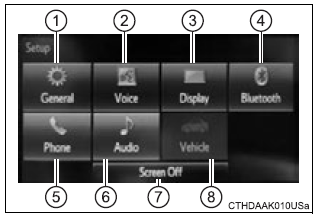
Press the "setup" button to display the "setup" screen.
- Select to adjust the settings for operation sounds, screen animation, etc.
- Select to set the voice settings.
- Select to adjust the settings for contrast and brightness of the screen.
- Select to adjust the settings for registering, removing, connecting and disconnecting bluetoothr devices.
- Select to adjust the settings for phone sound, contact, message, etc.
- Select to set audio settings.
- Select to turn the screen off.
- Select to set the vehicle custmization.
General settings
Settings are available for adjusting the operation sounds, screen animation, etc.
Screen for general settings
- Press the “setup” button.
- Select “general” on the “setup” screen.
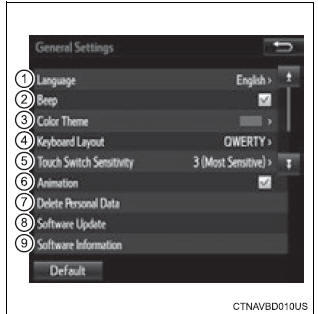
- "English", "francais" or "espanol" can be selected.
- On/off can be selected to sound beeps.
- Select to change the screen color.
- Select to change the keyboard layout.
- Select to change the capacitive touch button sensor sensitivity.
- The animation effect for the screen can be set to on/off.
- Select to delete personal data
- Select to update program versions. For details, contact your toyota dealer.
- Select to display the software information. Notices related to third party software used in this product are enlisted. (This includes instructions for obtaining such software, where applicable.)
To return to the default volume settings
Select “default”, and then “yes”.
Delete personal data
- Select “delete personal data” on the “general settings” screen.
- Select “delete”.
Check carefully beforehand, as data cannot be retrieved once deleted.
- A confirmation screen will be displayed. Select “yes”.
The following personal data will be deleted or changed to its default settings.
- General settings
- audio settings
- phone settings
Audio settings
Settings are available for adjusting the radio operation, cover art, etc.
Screen for audio settings
- Press the “setup” button.
- Select “audio” on the “setup” screen.
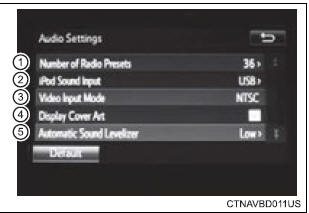
- Number of radio presets select the number of radio preset stations.
- Select input video sound.
- Select video signal.
- Display cover art on/off
- Automatic sound levelizer
Automatic sound leveliser (asl)
- Select “automatic sound levelizer”.
- Select “high”, “mid”, “low” or “off”.
About automatic sound leveliser (asl)
Asl automatically adjusts the volume and tone quality according to the vehicle speed.
Display settings
Settings are available for adjusting the contrast and brightness of the screen.
Screen for display settings
- Press the “setup” button.
- Select “display” on the “setup” screen.
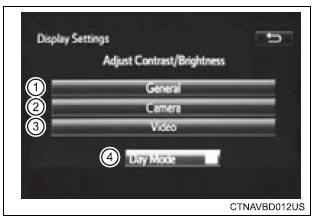
- Adjust screen contrast/brightness
- adjust screen contrast/brightness of the rear view monitor camera
- adjust screen contrast/brightness of the video.
- Changes to day mode.
Adjusting the screen contrast/brightness
- Select “general”, “camera” or “video” on the “display settings” screen.
- Adjust the display as desired by selecting “+” or “-”.
Day mode
When the headlights are turned on, the screen dims.
However, the screen can be switched to day mode by selecting “day mode”.
The screen will stay in day mode when the headlights are turned on until “day mode” is selected again.
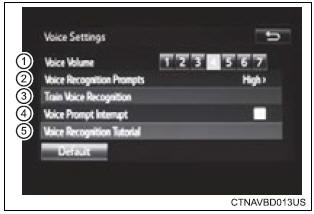
Voice settings
This screen is used for guidance for voice command systems setting.
- Adjust the voice guidance volume setting.
- Set the voice recognition prompts “high”, “low” or “off”.
- Set the train voice recognition.
- Set the voice prompt interrupt on/off.
- Voice recognition tutorial
To return to the default volume settings
Select “default”, and then “yes”.
Stored owner’s manualImported HTML from the shared Autotk manuals tables. Not an official Toyota site.